How to Extend Battery Life on a Linux Laptop

There are a number of advantages that come with using Linux but a long battery Life isn’t one of them.

While new versions of the Linux kernel has come with improvement in saving power, it still eats through the battery faster.

For starters, if you have a gaming laptop with Nvidia Optimus or AMD’s switchable graphics option, Linux will not be able to handle it as well as Windows will out of the box.

 mystemsjournal1

Even if you don’t have the switchable graphics but Nvidia and AMD graphics, the open-source graphics drivers will not help you power management support. For extend battery life, you will have to use the proprietary drivers from Nvidia and AMD instead.

Of course, you can disable the switchable GPU while using the integrated one. But the verdict is in: Linux handles everything except switchable graphics well.

Apart from this issue, there are other tips by which you can extend battery life when using a Linux distribution such as Ubuntu. First, you’ll have to access System Settings in Ubuntu’s Unity Desktop.

You can reduce the screen brightness and avoid using a screensaver. Configure your system to turn off automatically when you aren’t using your computer. In fact, you can configure the settings to go into suspend mode after a certain period of time too.

Also, if you aren’t using Bluetooth, then you should consider disabling that as well. Of course, if you are traveling and aren’t using Wi-Fi, then disable that as well.

Finally, you can use advanced tools such as PowerTOP and TLP that can help you diagnose power issues with Linux or extend your battery life as well.

Advantages to Synthetic DNA Molecules

Written by: The Midland Certified Reagent Company

Summary: Working with the human genome has enormous potential for the future.

Along with the ability to decode the human gene pool is the process to create synthetic segments of DNA. Synthetic oligos are perfect for testing because they simulate human DNA and can give scientists accurate results to demonstrate how a potential vaccine might affect the body. The ability to work with our gene pool will greatly enhance the understanding of medical science in the future.

Synthesizing a Reaction

The first step in creating a cure is isolating the genes involved in the disease, and how they affect the body. Once we understand more about the disease itself, we can work on testing drugs that will cause a certain reaction. For instance, if we wanted to cure cancer we might want to attack the gene that causes cancer cells to endlessly reproduce. We would need to identify the cancer gene responsible, and then see how to safely destroy or deactivate that gene without interfering with others.

This would be too difficult to test in living subjects, mostly because conditions are hard to duplicate. It’s now possible to perform DNA synthesis under precise lab conditions, which completely removes the need for a live subject until a cure has been defined and substantially tested.

Future Prospects

Soon, it may be possible for scientists to utilize RNA synthesis for their own aims. One method already tested involves using RNA to write code to DNA and turn molecules into storage devices. Maybe someday we’ll be able to write entirely new genetic code to existing DNA.

How to View Webpages When Offline in Chrome and Firefox

Almost everyone who uses the internet regularly experiences moments when their connection goes down. While this can be frustrating, you can still view these pages using Chrome or Firefox even if you are offline.

This is because both browsers have the ability to display content from their caches instead of the live version that you see on the site.

mysystemjournal4Please keep in mind that accessing these pages in this manner might change and which could render the saved webpage inaccurate. Of course, the browser cache only contains a limited number of webpages that you’ve browsed recently. This will not work on sites that have live feeds such as Netflix or Facebook.

Anyways, if you require information from a news site or from a webpage that you viewed recently, here are 2 solutions by which you can do this for each browser.

1: Chrome

Chrome is experimenting with how these webpages can be displayed. No, not the live ones but offline. That said, and for this to happen, you can start by typing “chrome://flags/#show-saved-copy” in the URL bar. After this, select Enable: Primary from the dropdown menu. You’ll find this from under the “Enable Show Saved Copy Button” heading. Once you’ve done this, then restart your browser.

Now, take your PC offline and try reading a webpage that you recently viewed. While you will see an error message from Chrome, you’ll also see a ‘Show saved copy’ button. When you click that button, you will see the version of the webpage when you were online.

2: Firefox

There’s no flag to set so as to view content offline in Firefox. Now, to view webpages from your cache, select the ‘hamburger’ icon in the upper right hand corner of Firefox. After this, select Developer>Work Offline. You’ll be able to find the webpage that you were looking for as long as it is in the browser’s cache.

What to Do If Your PC Is Overheating

There’s a distinct relationship between heat, electricity and damaged circuits. Every computer works with this relationship. In some cases, they even break down due to getting overheated.

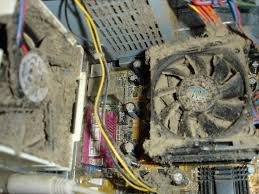
This is because too much heat will break down the CPU’s efficiency while wearing out components faster than usual. It is therefore necessary to keep an eye on your CPU’s temperature especially if it feels hot to the touch or the fan is working overtime.

mysystemjournal3For this, download Priform’s Speccy which is free of cost and easy to use. The main window in Speccy will offer a lot of information about your hardware. Temperatures will stand out either in bright yellow or orange text.

In particular, the System Tray offers temperature information in the notification area. Of the two colors, the orange one is what you need to be careful of because that indicates you have a real problem. But that’s only basic information. If you want more information, then make a model of your CPU and internal drive. You’ll find the information on Speccy itself – there’s nothing to worry.

Now, in order to find out how much heat is too much for your computer’s CPU, go to CPU World. Look for your particular processor, select it and look the temperature specifications involved. That said, this heat problem isn’t a problem with hard drive. In fact, a Google report stated that the activity levels and temperatures are less associated with the drive failure than anything else.

Yet any drive can be damaged by too much heat, so it is still a good idea to play it safe. Also, you can find the manual for your hard drive online. You can find the temperature numbers there if you want to double check.

How to Stop HTML5 Video Autoplay in Chrome and FireFox

Visiting a web page can be irritating given that there are videos that play automatically. Flash videos are one type while there’s another: HTML5.

No matter the type, they can both be just as annoying and should be blocked if you intend to not be interrupted. If you use either Chrome or Firefox or both, it’s easier than you think. That said, there still isn’t a fix for this when you use Internet Explorer.

Here’s how you stop autoplaying HTML5 videos:

mysystemjournal21: Chrome

First, you need to download and install a Chrome extension known as Stop YouTube HTML5 Autoplay. This is an extension developed by Port Zero. If you can’t download the file, then go to the developer’s site. It must be pointed out that even non-YouTube HTML5 videos will be blocked.

The program is excellent and works very well. Just install and enable it and the videos won’t start automatically. Of course, you can click the video to get it going.

2: Firefox

If you use Firefox, you don’t need an add-in or extension to enable this. First, open a Firefox tab or window. In the address field, type “about:config”. After this, click the “I’ll be careful, I promise” button. A long list of settings is thrown up. You’ll find a search field above it. Enter the word ‘autoplay’ and hit Enter. One entry is thrown up: media.autoplay.enabled.

Look for the Value column. Now double-click the entry. The Value will change to False. After this, the next time you visit a web page with videos, an image will come in place of the video itself. It won’t start until you want it to either.

What You Need to Know About Running Android Apps on Windows

Android and Windows are very different operating systems. This is why programs on one system will not work on another.

For this, using an Android Virtual PC on your system is advised. But it can be a real challenge setting it up.

That said, there’s an easy work around this problem in the form of the American Megatrends’ AMIDuOS. This program is based on the popular technology used by VirtualBox. So, it offers one a virtual Android machine in a pre-conformed package.

mysystemjournal1Quite oddly, AMI seems to be confused with what to call this program. When used for Windows, it calls itself DuOS. On the website, it is called AMIDuOS.

(This sounds very similar to the Baroque composer known as Wolfgang Amadeus Mozart but the resemblance was unintentional, of course)

Now you can run AMIDuOS (and Android programs) either in Full Screen or in a new window. Experts recommend the Normal Screen Settings that can be changed using the DuOS Configuration Tool.

The reason for this is it fills the entire screen but still makes room for the Windows Exit and Minimize Icons. Additional settings will enable you to use your Windows libraries in Android. You can root and unroot your virtual device too.

That said, both these operating systems will play well together. You can even copy-paste from one to the other. But the usual Ctrl-C and Ctrl-V doesn’t work.

As for its costs, you can use AMIDuOS for a duration of 30 days at no cost. After this, you’ll have to pay $10 to use AMIDuOS. Since it is tied into your Google account, you can log on and actually install it on as many PCs as possible.

IT Training Is More Important than Ever

Written by Brand College

It’s no secret that the last seven years or so have not been great for our economy. Many people are still worried that we’re not actually out of it yet and that the next handful could be just as bad. Whatever the case, you still need a job. Hopefully, the recession has also made it clear that you need a job which will actually deliver a sufficient paycheck and that this means one you can depend on for the foreseeable future. Whether you don’t have a degree or the one you currently have isn’t working, consider getting into information technology training in Los Angeles.

There are countless ways you could do this. Right now, for example, Cisco training in Los Angeles is very popular. Learning about information services, software design and server management are all great options too.

The point is that you want your paycheck to be tied to the digital world. It clearly isn’t going anywhere any time soon. If anything, it’s getting more and more important. With the right training, you could land a job practically anywhere in the world.

For that, consider Brand College. It’s located at 529 Hahn Ave. Suite 101, Glendale, CA 91203-1052, so just a stone’s throw from LA. They have a history that shows they understand this important field and know how to pass it on to others too.

 ——————————————————————————

Are you hoping to take a plus training Los Angeles? If so, you can do much better than entrusting Brand College with your needs. Their reputation and staff speak for themselves.

How to Mute Noisy Chrome Tabs With Just One Click

When you have a number of tabs open and a number of them are playing audio or video, it would be hard to tell which one is playing what.

Which brings us to the volume indicator which was old news in 2014. However, in 2015, Google gives users the ability to mute noisy tabs with only one click.

With this feature, you don’t have to scroll from page to page, or find the audio or video to stop it. Now, all you have to do is click the speaker icon located in the tab so as to silence the any noisy tab that you cannot find.

mysystemjournal4Now, since the feature is still a work-in-progress, the only way to get it started is by enabling a Chrome flag to get it started.

The first thing that you need to do is enter chrome://flags in the Chrome address bar. Now hit Ctrl+F so as to open the Search function and then type “Enable tab audio muting UI control” in the text entry box that appears in the upper-right corner.

This search will then bring you to the hidden feature where you can click the Enable link and then close the tab. Once this is done, reboot Chrome so as to get the feature working.

Now, click the upward-facing arrow in the system tray and which is located on the far-right hand side of the taskbar. After this, right-click the Chrome icon and then select Exit.

Once Chrome disappear from the system tray, open the browser again and test the feature by opening YouTube on one tab and a news site on another. Once the video starts playing, you can click the “Volume” icon if you want to mute it. To re-enable sound, click the icon again.

How to Enable Distill – Chrome’s Reader Mode

A number of browsers has had this feature for several years now. However, Chrome has finally caught up by adding a “Reader mode” that will break down an article into its text and images so as to make it much easier to read.

The new feature known as Distill which might be a work-in-progress is still worth trying out for those who use Chrome a lot.

However, in order to use Distill, there are a few steps that you will need to carry out. Firstly, you have to pin Distill to your taskbar. Of course, a desktop shortcut should also work.

mysystemjournal3If you haven’t done this yet, right-click on Chrome’s icon and click “Pin this program to the taskbar”. Now close Chrome via the taskbar where you right-click the Chrome icon and then click Exit.

Once this is done, right-click the Chrome icon in the taskbar while highlighting Google Chrome as a result. Now, right-click Google Chrome again and then select Properties.

With this, a Properties window now opens. Under the Shortcut tab, you’ll see a label titled ‘Target’ along with a text-entry box. Now place the cursor after the last quotation mark and type: –enable-dom-distiller.

Click Apply and then OK after that.

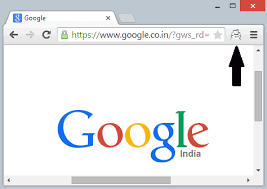
After this, open Chrome and select the ‘hamburger’ icon on the upper right side where a new option that says “Distill page” should be displayed.

All you have to do is select “Distill” when you are viewing an article and this will make your reading a whole lot easier.

One thing you must know is that this feature is a simple one and does not have anything fancy.

Alternatively, there are extensions from the Chrome Web Store such as Clearly that offers the same feature as Distill.

3 Ways By Which Android Tracks Your Activity

There are a number of ways your Android device tracks your activity. Whether or not you find that to be creepy depends on how paranoid you really are.

Of course, Google does this so as to generate search results that might be most suited to your needs. Even though the company says that only you can access your browsing history, it’s still a good idea to think about knowing how Android tracks your activity.

Having said, here are 3 ways by which you Android tracks your activity:

#1: Web History

Google keeps track of your searches whenever you use Chrome from any device so as to make your search results far more relevant. In order delete your web history, open the Applications drawer and the Google Settings. Now tap Account History, Web & App Activity and Manage History buttons. You can either turn on the Private Browsing feature in Chrome or use the Search box and Remove Items button accordingly to delete your search history. You also have an option to put your entire web history on pause so that Google doesn’t save your searches. This is done by unselecting the On setting on top of the Web & App Activity screen.

mysystemjournal2#2: Location

If you give Google the green signal, Android will keep track of the location of your tablet or other devices and which is done by pinging its servers from time to time. This can happen even if you aren’t actively using these devices.

To remove it, go to Google Location History and uncheck all devices whose location you do not want to share. Tap Delete Location History to wipe your location history completely.

#3: YouTube Browsing

Your YouTube searches are usually saved so as to offer recommendations and better search results in the future. Now you can either remove an individual search or all of it. For this, go to Account Activity screen and YouTube Search History as well as Manage History. As mentioned earlier, to remove individual search from the list, tap the three-dot menu button and then, Remove from Search History. As for deleting the entire list, tap the Clear all Search history button.