
How to Install a Graphics Card

Installing a new graphics card can really give your PC a boost when it comes to playing even the most visually demanding games that you might want to play.

However, finding the right graphics card (mostly from companies such as Nvidia or AMD) is very important considering how many there are. The budgets also range from below $100 to above $1000.
mysystemjournalWhile it will be ideal to find the right graphics card that gives you most bang for your buck, it’s also important to consider a card’s heat, noise and power consumption. Of course, it’s important to check whether your PC has the right hardware to support your new card.

The most common problem that you might have is with the right power supply especially if it is multi-card configuration. Finally, the last thing that you must think about is whether there is enough space in your PC for the graphics card of your choice.

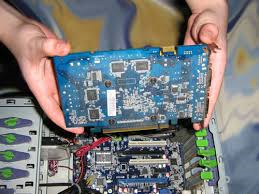
Now, installing a new graphics card is pretty simple. All you need is your PC, graphics card and a Phillips-head screwdriver. Make sure you turn off your PC and unplug it before you start the installation.

First, you have to remove the casing and then find the graphics card so as to remove it. If there’s isn’t one, then it’s time to locate the PCI-E x16 slot which is closest to the heat sink of the processor and which will either be the first or second expansion slot on your motherboard.

If you’re replacing an existing graphics card, remove any cables, loose wires as well as the existing screws from its retention bracket and the old graphics card and replace it with the new one. Use screws to hold the graphic card’s retention bracket to the your computer’s casing.

Also, you might need to add additional connectors and which is where connecting PCI-E cables will not work without that extra power and your PC might not be able to boot.

Discovering New Cures for Age Old Diseases

Cancer has been a problem humans have been dealing with for ages, and it’s a continual thorn in our collective side. It’s a disease with a high mortality rate, and we understand a lot about what it does but not how to stop that process. While medical science works hard on cracking that puzzle, we’ve made progress on other diseases that have been problems for ages.

Understanding Disease

HPLC purification is a crucial process in forensic science, telling us more about how a disease has affected someone on a molecular level. We can use this process to test reactions of potentially harmful toxins, in order to isolate exactly how a disease affects the body. Once the reaction is observed, and repeated, it becomes something scientists can test for.

Understanding what a disease does is the first step in curing, killing or deactivating it.

How Cures Work

Going deeper, we can even use these synthetic strands to test for the presence of something. Phosphorothioate oligonucleotides, for instance, are “anti-sense” particles used in genetic therapy. These drugs basically deactivate whatever strand of DNA would otherwise cause the harmful genetic disorder to crop up.

We can also test for these chemicals and toxins in real-time, which means a diagnosis is much faster than it was even ten or twenty years ago. That’s made a significant difference in response times and diagnoses for patients in places like Africa, a region beset with malaria outbreaks. Testing has sped up results and that means doctors have more time to prescribe life saving medication to patients. The costs are also lower, so testing is feasible in poorer nations.


Bio: The Midland Certified Reagent Company can manufacture phosphorotioate oligonucleotides, as well as purification modalities used in a variety of testing processes.

2 Ways to Check if a Website is Down

Using the Internet can work out to be a great book but there are times when it isn’t – when you connection is down, of course. While there are easy fixes that one can opt for, there are other times when it isn’t and where access to your favorite sites is completely shut off.

There are only two scenarios that can result from such a situation: either the problem is with the site or your internet connection.

So, in order to figure out whether the problem is with you or the site, here’s what you can do:

#1: Use isup.me

One of the simplest things that you can do is visit a site: http//isup.me to check whether a site is truly down or is it because of your internet connection. Enter the address of the site you want to check and hit the Enter key. In a few seconds, you’ll find out whether the site is down and the problem is happening only with ‘just you’ or it’s ‘not just you’.

#2: Use the command line program Ping

Another way to check this is by using the command line program Ping. All you have to do is open the command line and type “ping www.facebook.com” if you are checking for whether Facebook is up or not. Enter any other site’s address in place of Facebook here to do the same. Enter the “www” and hit the Enter key. If you see four lines with “Reply from…”, then the site is working. If you see the message“Request timed out”, then the site is down. Also, remember that some sites refuse pings with a couple of examples being Amazon and PCWorld.

Steps to Resolving Slow Performance With Your PC

There are a number of reasons why your system can slow down. Probably the fastest and simplest way by which you can solve this is by rebooting your system first.

A number of people actually use their PC 24/7 and put them in sleep or hibernation mode instead of shutting them down completely. A simple reboot in this case can also clean out these so-called temporary cobwebs, if you will.

If you have rebooted and your system continues to run slow, then the next step would be to ask yourself what was changed recently, when it comes to your PC.

If there was a new program or hardware installed or even the driver was updated, it would be a good idea to undo what you just did.

For uninstalling a program, you can use the Programs and Features tool in Control Panel while selecting the Roll Back Driver option in the Drivers tab found in Device Manager. Similarly for new hardware that has been added, go to Device Manager and right-click it and select Uninstall to complete the process.

Of course, if none of these actions has influenced the speed of your system then it is time to check whether an overly large memory is taking up a lot of resources from the CPU or memory.

Open Task Manager and look at the Processes tab which contains both the CPU and Memory columns. You should be able to find a program that is taking up resources and close it in Task Manager itself.

Of course, this is only a temporary fix and one must uninstall the program next and so to ensure that your system doesn’t slow down the next time around.

Finally, while malware might rarely cause your system to slow down and for this you can use software that searches for malware so as to resolve the problem.

How to Fix Hardware Issues That You Might Not Understand

No matter what happens to your system, it usually has little or nothing to do with the hardware but with the software that is powering it.

Even if you don’t know how to go about fixing the problem, there is a simple trick that one can use to fix most if not all simple hardware issues that you might face. In particular, if one of your PC components stop working, then you can try this too.

For starters, you have to open Device Manager in Windows 8.1 if that’s the operating system version you are using.

Now let’s say that your USB Port is the problem and for which you get an error code 43. Remember that this error type isn’t just for USB drives but for any software component on your system.

Once you have opened Device Manager, then look for Universal Serial Bus Controllers which when selected will throw up a list of USB drives on your PC. In this list, you will find an item with a yellow triangle titled “Unknown device”. Select it and another window will open.

If you see the message “Windows has stopped this device because it has reported problems” in a window titled ‘Device Status’ which is in the General tab.

Now, in order to resolve this particular issue, click the Driver tab and the Uninstall button. This will uninstall the low-level software that is used to run the hardware on your system. Next, go back to the main Device Driver window and select Action and Scan for Hardware Changes. Windows will reinstall the missing driver.

Finally, go back to the General tab and check the Device Status which should say that it is working properly now.

How to Use Gmail’s Hidden Colored Stars to Organize Your Inbox

While there’s no doubt that a clearly organized Gmail inbox can give one a sense of order, there are other aspects, such as its Starred section, that can improve it further.

Labels can prove to be very efficient when it comes to categorizing and storing certain emails but there are important emails that can be found by Starring them. It’s much easier to access these emails too.

Of course, there’s more to Gmail than just yellow icons that are used to indicate starred emails. Accessing your Gmail settings will show you a number of colored stars such as green, blue, red, orange and purple too. If that’s not enough, you can use colored exclamation points, check marks among other items that are available.

While you can each colored star to indicate an action that you would like to take, there’s no way of personalizing each star with a particular purpose or name.

To set up this feature with Gmail, click the cog in the upper right hand corner and select Settings from the dropdown menu.

When the Settings screen opens, look for the General tab and then the Stars section that close to the top. Google’s presets that are in place include 4 stars or all stars and that should include more starred colors to you.

Also, you can drag and drop each star from the In Use to the Not In Use category when necessary. This will help you get the number of stars that you need. Of course, dragging and dropping stars from within the In Use section can be done to get the exact lineup that is necessary.

Make sure you hit Save Changes at the bottom and get back to your inbox to start using these stars.

That said, if you want to use a yellow star, then click once or just once more to get a list of colors that you can pick from. That’s it.

Are Medical Device Coatings Safe for the Body?

Written by: Denton Vacuum, LLC

Summary: Are medical device coatings actually safe for the body?

As medical science evolves, the need to put objects into a patient’s body increases. There are more gadgets that do more to keep patients alive and comfortable for longer periods of time. Consider just how much tubes like the catheter have changed. They are still not a pleasant experience, but aqueous coatings have made them easier to slip in and out of the patient’s body.

These chemicals bring up important questions about the safety risks posed to your body. Are these device coatings actually making patients safer?

Consider the Device

There are several kinds of anti-reflective coating possible for eye glasses. Each is good for a specific kind of user. Index-matching, for instance, functions like tarnishing a lens. So it is with coatings, each coating being suited to a specific purpose and carrying out a specific duty. Anti-microbial coatings, for instance, are designed to fend off bacterial infections that can seep through open wounds created by tubes into the skin.

Without these devices, patients still need a catheter or eye glasses, but their site or comfort levels may be diminished. In some cases, their health is jeopardized as they are at risk for infection.

Alterations to the Device

If the coating inhibits the device from doing its job, the coating is ineffective. That’s why medical manufacturers utilize a thermal evaporation system when applying coatings to a device. The finish is thin-film, often only micrometers in thickness, which presents almost no difference to the patient.

Thin film is a little different from the effect yo get with UHV sputter deposition. This process acts more like a spray can, and can give a smooth surface but it more often used to metalize something. You might find metalized plastic in joint replacements or acting as anti-static shielding for medical equipment in the patient’s room.

Why Mobile Video Ads Will Prove Effective in 2015

Ads compete with many distractions in order to get a user’s attention. Banner ads, for instance, compete with content. Radio ads compete with the ability to change stations, and television ads compete against the ability to fast forward. Only our smartphones manage to captivate our attention for any significant length of time, and that makes the mobile video ads an important part of the landscape in 2015 and beyond.

Hard Stats

It is common knowledge that smartphone adoption is up, but video consumption on these devices grew a staggering 400 percent during the latter part of 2014. That’s a significant chunk of all hours spent viewing videos online. It’s had such a significant impact that it’s triggered a debate over how to manage all of this traffic within the marketing community, and a debate over faster connection speeds at the government level.

A large portion of the videos seen are ads. Most of them are short, which explains the volume, but they must still have strong messaging to be successful.

Making Video Ads Effective

In order to make a video ad effective, you have to employ some of the same tactics TV shows and movies use themselves. Namely, make the ad hook the viewer in within the first few seconds. Keep your messaging simple and the video brief until you’ve developed a solid understanding of what your audience responds to.

Mobile video ads do have the built-in advantage of holding the user’s attention. Consider how we use mobile: while in transit or waiting in line. During times when we are seeking distraction. Use that time wisely and your engagement and conversion rates might see a bump in performance.

Bio: Ted Dhanik is the co-founder and CEO of engage:BDR. Ted Dhanik is passionate about digital advertising, and has been in the business since the early 2000s. If you want to buy targeted traffic to build your business, talk with Ted Dhanik and the team at engage:BDR.

What You Need to Keep in Mind When Traveling with a Laptop

Almost ten years ago, traveling with a laptop across international lines was much easier than now. With a number hardware compatibility issues resolved, there are new challenges that has to be considered such as protecting your files and even just crossing international borders.

Of course, this doesn’t mean that custom officials will take you aside every time to check the contents of your SSD or hard drive. However, this could happen from time to time and for this reason, you should be prepared.

Encrypting your files is not the way to go as this might arouse suspicion among officials. Instead, copy your sensitive files to media that you keep at home or even in its encrypted form into the cloud. After this, you can wipe them off your internal hard disk completely.

Of course, apart from this, the files that you will need during your travel should be backed up in the cloud just in case you lose your laptop or something goes wrong.

Another thing to keep in mind is that if you wish to stay for a long time in another country, you might have to pay duty tax to use your laptop when you are there.

There are a couple of ways by which you can determine the fees involved: one, search for ‘duty tax’ and the name of the country or even try the Duty Calculator which is free to use for the first time.

One last thing: different countries have different electric outlets and voltages. For this, you should purchase an international plug adapter for as much as $10. There are universal adapters for as much as $30 and even have a USB port.

Having said that, most laptops can handle voltages varying 100 to 220, and so that shouldn’t be that much of a problem to deal with.

What You Need to Know About Cameyo

A company known as Cameyo has created software where one can run programs not only from a USB stick but also in a browser as well.

There are a number of open source programs that are offered but one can also upload EXE files to the Cameyo account so as to run these programs that you might need wherever you are.

Of course, there are issues that come with using Cameyo because some programs tend to run slow while others will not work at all.

So, what should you do at first?

Sign for a Cameyo account and then link your DropBox account to it. After you do this, you can access the files that are located in the folder with the path: \Apps\Cameyo\Desktop. It must be said that any files that you create will also be saved at this location as well.

Starting a program is really simple. You can click on any of the programs that should display a ‘Play’ button and use it just like you would on any Windows system.

Of course, it goes without saying that when you are navigating through the file system, you will not be able to access any local files on your system.

As for the programs that are available for casual users, Audacity, 7Zip and Irfanview can be used for audio editing, file compression and video editing tasks.

That said, it wouldn’t be much of an everyday solution but Cameyo does come in handy if you are away from your computer.